
How to make a Hotel Lobby AI video
No app to install · Works on phone or desktop · No watermark
The three steps, in detail
Nothing here needs a second tool or a second tab.
Upload two photos
One clear, front-facing photo of each person — one per photo, not one photo of both. They do not need to be taken together, and the two photos can be years apart. Cats work too.
Pick duration and quality
Choose 5, 10 or 15 seconds, then a tier: Lite is 480p, Standard is fast 720p, Plus is sharper 720p, Ultra renders 1080p. The credit cost is on the button before you click, and your first 10 credits are free.
Download and post
Your video renders in about 3 minutes with the performance audio and no watermark. Download the MP4 and post it to TikTok, Reels or Shorts.
Run this before you upload
Almost every disappointing render fails one of these six checks.
Which duration and tier to pick
The cost difference is real, so it is worth one minute of thought.
| Tier | 5s | 10s | 15s | Pick it when |
|---|---|---|---|---|
| Lite | 10 credits | 20 credits | 30 credits | You just want to check the likeness |
| Standard | 20 credits | 40 credits | 60 credits | You are going to post it |
| Plus | 50 credits | 100 credits | 150 credits | You want the look of the homepage samples |
| Ultra | 210 credits | 420 credits | 630 credits | You are publishing somewhere that will not compress it |
The two-render workflow that saves credits
Render 5 seconds at Lite first (10 credits, free on a new account). That is enough to judge whether the two faces came out right — the framing, the likeness, whether the second person is moving.
If it looks right, re-render the same photos at Standard 15 seconds for the version you post. If it looks wrong, fix the photos and try again at Lite — you will have spent a fraction of what a full render costs.
How to post it
The file is ready as-is. A few platform notes make it travel further.
TikTok
Reels and Shorts
If it does not land
If the first render misses
Match the symptom to the fix — re-running without changing anything usually repeats the same result.
| What you see | What to change |
|---|---|
| The two people are on the wrong sides | Use the Swap sides button. Photo one is always the performer on the viewer's left. |
| It does not look enough like them | Upload a sharper, front-facing photo. Sunglasses, filters and profile angles are the usual culprits. |
| One person barely moves | That photo is probably cropped too tight. Use an image that includes the shoulders and torso. |
| The faces blur together | You uploaded one photo containing both people. Crop it into two separate images, one person each. |
| The render failed or came back empty | Nothing to fix — failed renders are refunded automatically. Try again, or use a different photo pair. |
| The setting is not what you wanted | Re-render with a different template. All settings use the same two photos and the same three steps. |
How-to questions
The practical ones, answered.
How long does the whole thing take?
Do I need to install anything?
Can I make one on my phone?
Can I edit the video after I download it?
What if I do not like the result?
How many times can I re-render?
Keep reading
The other guides, if you want the full picture before you upload.
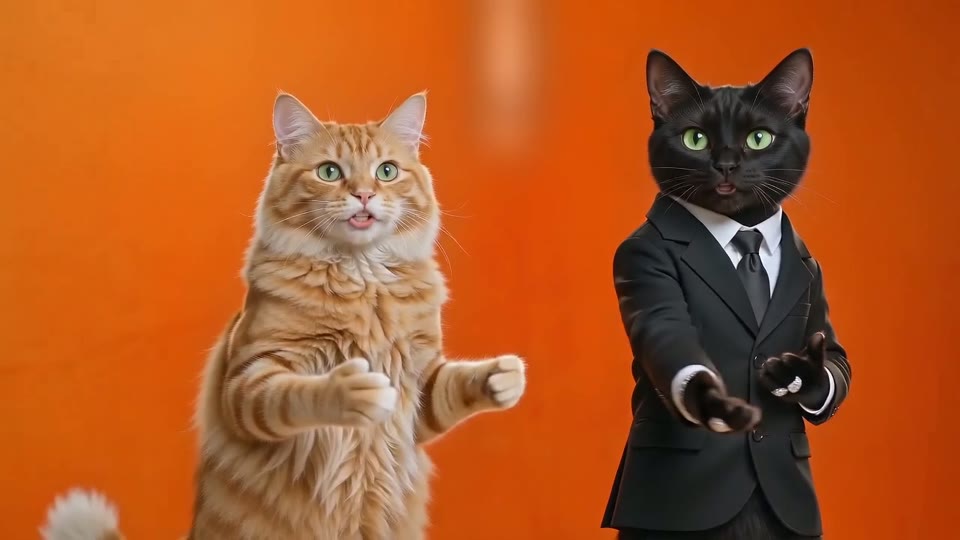
Hotel Lobby AI
The trend behind the Hotel Lobby AI video: where it came from, the timeline, and duo ideas to try.
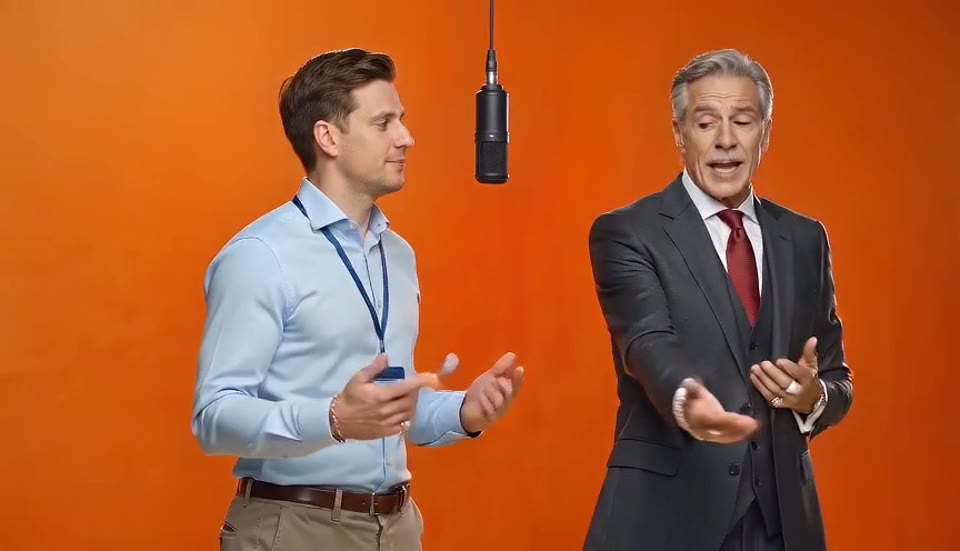
Hotel Lobby AI video generator
Output specs, the four quality tiers, and the photo rules that fix most bad results.
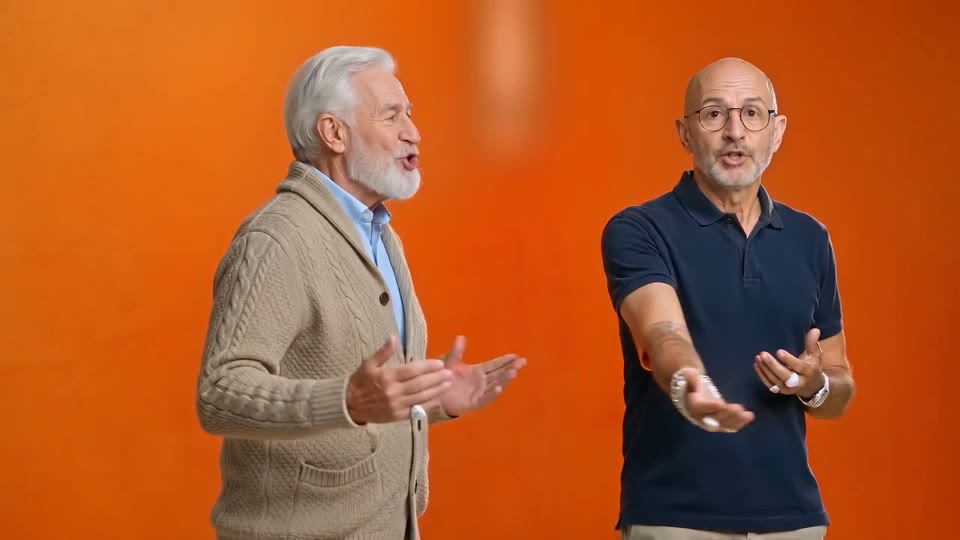
The Hotel Lobby AI song
What the song in every video is, where it came from, and how to post with it.
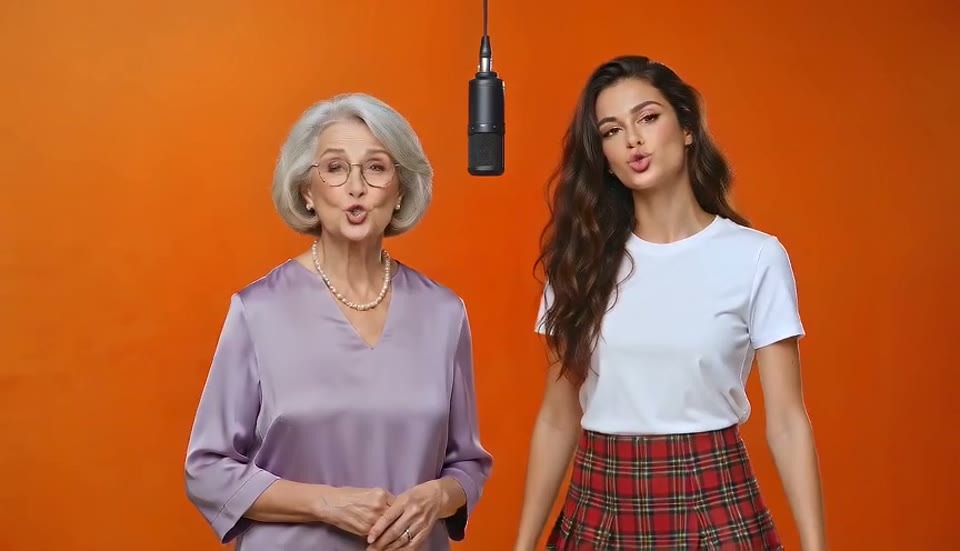
Hotel Lobby AI free
What the free 5-second preview includes, what a full video costs, and how other free options compare.